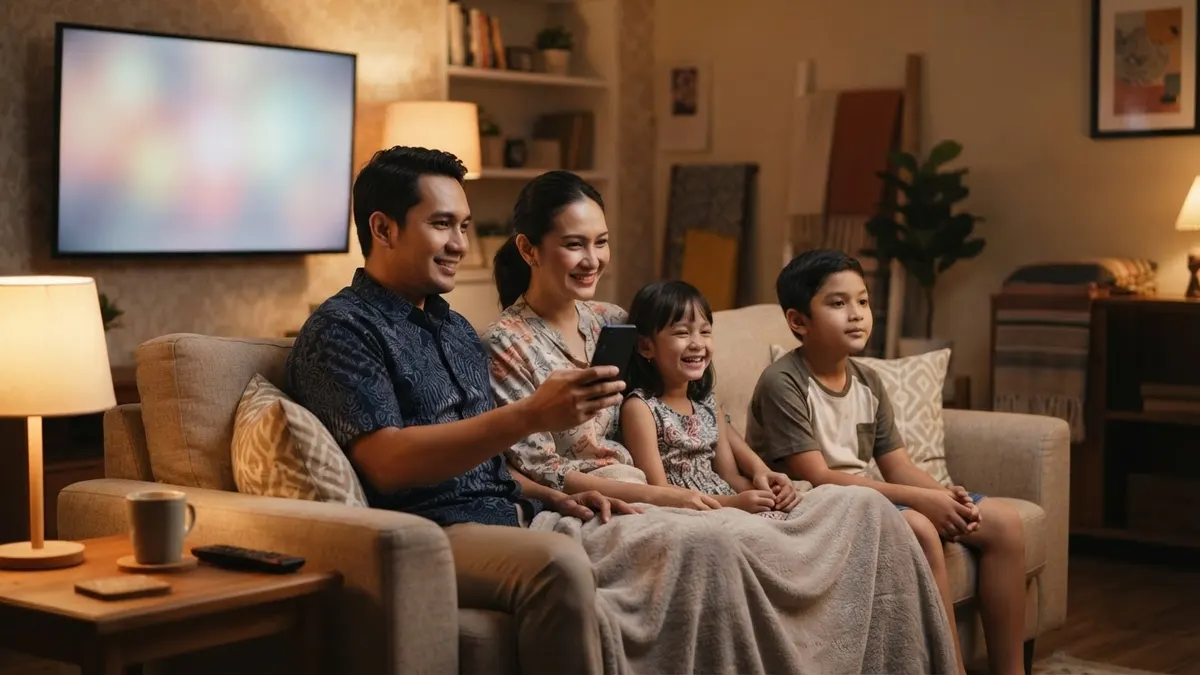
There are two ways to show your phone on a TV without a cable, and people often mix them up. Choosing the right one gives a sharper picture without stutter.
| Screen mirroring | Cast | |
|---|---|---|
| What appears on the TV | The whole phone screen, including notifications | Only the chosen video or music |
| The phone during playback | Must stay on and nearby | Can be used for other things or locked |
| Picture quality | Depends on the signal between phone and TV | Usually sharper |
| Best for | Photos, presentations, games, any app | YouTube and video apps that support it |
How to screen mirror an Android phone to a TV
- Turn on the smart TV. On some TVs, first enable Screen Mirroring or Miracast from the input source menu or settings.
- On the phone, swipe down from the top to open quick settings.
- Tap Smart View, Cast, Screen Cast, or Screen Mirroring. The name varies by brand. If it's not there, search Settings for "cast" or "mirroring".
- Choose the TV from the list, then accept the connection request on the TV.
Android mirroring usually uses Miracast, which runs on Wi-Fi Direct: the phone and TV connect directly without going through the router. It's explained in what Wi-Fi Direct is.
How to mirror an iPhone to a TV
iPhone uses AirPlay. It needs an Apple TV or a smart TV that supports AirPlay. Many smart TVs from the last few years support it. Check the TV's settings menu.
- Make sure the iPhone and TV are on the same Wi-Fi.
- Open Control Center and tap Screen Mirroring.
- Choose the TV. If the TV shows a code, enter it on the iPhone.
If the TV doesn't support AirPlay, the options are a streaming device plugged into HDMI, or a video app with its own Cast button.
How to cast from YouTube and video apps
- Connect the phone and TV to the same Wi-Fi.
- Open the video app and tap the Cast icon (a rectangle with signal waves in the corner).
- Choose the TV. The TV plays the video directly from the internet.
Because the TV downloads the video itself, your home internet speed matters. If video on the TV keeps buffering, read streaming buffers despite a fast speed test and smart TV slow on Wi-Fi.
If the TV doesn't appear in the list
- Make sure it's the same Wi-Fi. For casting and AirPlay, the phone and TV must be on the same network. Dual-band routers sometimes use different names for 2.4 GHz and 5 GHz. Connect both to the same name.
- Guest networks and public Wi-Fi often use device isolation, so the phone can't see the TV. This also happens in many hotels and boarding houses. See guest networks on a home router.
- Restart the TV, then turn the phone's Wi-Fi off and on.
- The TV isn't online yet. See how to connect a TV to Wi-Fi.
- If other devices can't be seen either, read devices not visible on the network.
If the picture is choppy or delayed
- Move the phone closer to the TV. Mirroring sends images constantly, so distance and walls matter a lot.
- Use 5 GHz Wi-Fi for casting and AirPlay. See 2.4 GHz vs 5 GHz.
- Reduce interference. Microwaves, Bluetooth devices, and crowded neighboring Wi-Fi can interfere. Read Wi-Fi interference from other devices.
- For gaming, wireless mirroring always has some delay. An HDMI cable suits it better.
Wired options
For a TV that isn't a smart TV, or if wireless mirroring keeps failing, use a cable. A phone with a USB-C port can only output video through a USB-C to HDMI adapter if the phone supports video output. Check the phone's specs before buying an adapter. Choosing the cable is covered in choosing HDMI and network cables for a TV. Another option is a streaming device plugged into HDMI, as in choosing an Android TV box.
Protect your privacy while mirroring
Mirroring shows everything on the screen, including chat notifications. Turn on do not disturb before showing your screen in front of others. In boarding houses, offices, or hotels, set the TV to always ask for confirmation before accepting a connection, so others on the same network can't put something on your TV. See also smart home device security.
Frequently asked questions
How do I screen mirror an Android phone to a TV?
Turn on the TV and enable screen mirroring in its menu if there is one. On the phone, open quick settings and tap Smart View, Cast, Screen Cast, or Screen Mirroring, depending on the brand. Choose the TV, then accept the connection request on the TV.
What's the difference between screen mirroring and casting?
Mirroring shows the entire phone screen as is, including notifications, and the phone has to stay on. Casting only sends the video's address to the TV, which then plays it from the internet itself. Casting is usually sharper and smoother, and you can use the phone for other things.
Why doesn't my TV appear when I try to mirror?
The most common causes: mirroring isn't enabled on the TV, the phone and TV are on different Wi-Fi networks, or the network uses device isolation, as in hotel and boarding-house Wi-Fi. Make sure both are on the same Wi-Fi, then restart the TV.
Why is the TV screen black when mirroring a movie app?
Many paid streaming apps block mirroring to protect copyright, so you only get sound or a black screen. Use the app's Cast button instead, or install the same app directly on the TV.