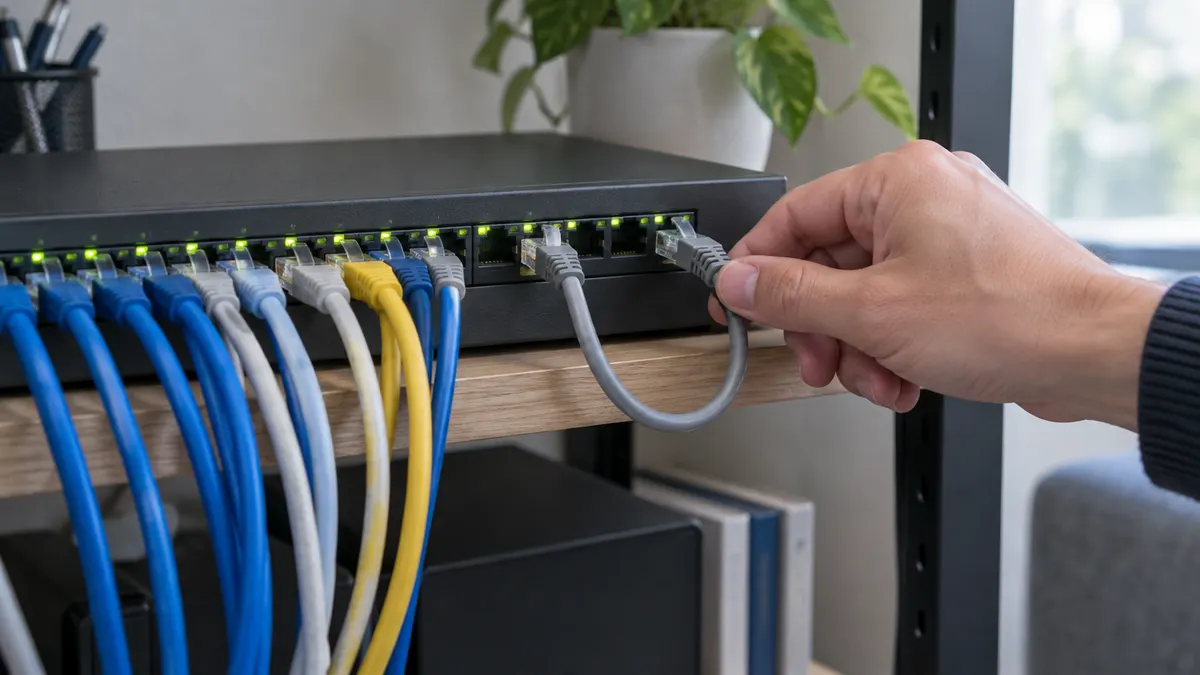
One morning, a small office that normally runs smoothly grinds to a halt. The internet is down on every computer, the printer won't respond, and Wi-Fi connects but won't load anything. The router has been restarted, with no change. The internet provider says the line is fine.
Then someone notices that every light on the switch is blinking very fast, all in sync, like fairy lights. The previous afternoon the cleaner had found a LAN cable lying under a desk and, with the best of intentions, plugged its loose end into an empty socket. The other end was already plugged into the same switch. Unplug that cable, and within seconds everything recovers.
This is called a network loop, and what it causes is called a broadcast storm. It's one of the most baffling faults there is, because nothing is broken, no setting has changed, and the cause is just a piece of cable.
What is actually going on
To see why one cable can bring everything down, it helps to know a little about how a switch works.
A switch forwards data in small packets called frames. Most frames are addressed to one particular device, and the switch sends them only to the port where that device sits. But one kind of frame is addressed to every device at once: a broadcast. Devices send broadcasts whenever, for example, they ask the router for an IP address or try to find out which device is using a given IP address. This happens constantly all day, and under normal conditions you never notice it.
The switch's rule for broadcasts is simple: send it out of every port except the one it came in on. That rule is safe as long as there's only one path between any two points on the network.
Now picture one cable with both ends plugged into the same switch, say into port 3 and port 7. A broadcast arrives from a computer, and the switch sends it out of every port, including port 3. The frame leaves port 3, travels along the cable, and comes back in through port 7. To the switch, that's a fresh broadcast arriving on port 7, so it sends it out of every port again, including port 3. Out it goes, back it comes, and so on.
When the path is more complicated, for example two switches joined by two cables, or three switches connected to each other in a triangle, every lap can produce new copies. One broadcast becomes two, four, hundreds, in a very short time, because switches work at cable speed.
Why it never stops on its own
On the internet, every packet carries a number called TTL (time to live) that goes down by one each time it passes a router. When it reaches zero the packet is discarded, so a lost packet can't circle forever. The router in your home or office uses this mechanism too.
Frames inside a local network carry no such counter. An ordinary switch has no idea that the same frame has already passed a thousand times. As long as the loop is connected, frames keep circulating and multiplying until the cable is pulled or the equipment is switched off.
Why everything goes down with it
Two things happen at once. First, the capacity of the cables and the switch is used up forwarding circulating broadcasts, leaving almost no room for real data. Second, every device on the network has to receive and inspect every broadcast. The router, access points, printers and computers are swamped with pointless work, and some devices with small processors become unresponsive or even restart themselves.
There's a subtler effect too. A switch keeps track of which port each device is on by noting where its frames come from. When the same frame keeps arriving from two directions in turn, that record keeps changing, so even ordinary traffic gets sent to the wrong port.
Wi-Fi suffers as well, because access points pass broadcasts from the cable onto the air. A phone that has never touched a cable still experiences a dead network.
Common forms a loop takes
Loops are almost never created on purpose. They come from small things that look harmless:
- One cable, both ends in the same switch. The classic. Usually a spare cable left plugged in at one end, then plugged in at the other by someone who assumed it was meant to be connected.
- Two switches joined by two cables. Often done with good intentions: "to make it faster" or "as a backup". On an ordinary switch, the second cable adds no speed, only a loop.
- Through wall sockets. Two sockets in the same room both turn out to run to the same switch in another room. Someone links them with a short cable, or plugs a small desk switch into both at once. From inside that room, nothing looks wrong.
- The small switch under the desk. An extra switch added for more ports is often connected to a wall socket, and then one of its ports is connected to another wall socket.
- Mesh systems with cables. A mesh node connected by cable while also linked wirelessly to another node forms, in theory, two paths. Single-brand mesh systems are generally designed to handle this themselves, but problems can arise when the wired backhaul passes through a switch in an unexpected way, when equipment from different brands is mixed, or when two nodes are cabled to two switches that are also connected to each other. Wired and wireless paths are explained in the guide to mesh Wi-Fi backhaul.
- An access point in bridge or repeater mode that is also cabled into the same network, giving a wired and a wireless path to the same place.
Symptoms that set it apart from other faults
A dead internet connection can have many causes. A loop has a fairly distinctive pattern:
- The switch port lights blink very fast and in sync. Normally each light flickers irregularly according to its own device's activity. With a loop, many lights blink together at the same rhythm, or stay almost constantly lit, even on ports whose devices are idle.
- Every device is affected at once, wired and Wi-Fi alike. If only one device has a problem, a loop is almost certainly not the cause.
- The local network dies too, not just the internet. The router's admin page is slow or won't open, the printer can't be reached, file sharing between computers fails. That's what separates it from a fault on the provider's side, where the network inside the office keeps working.
- Restarting the router doesn't help, or only helps briefly.
- It starts suddenly, often coinciding with something: new equipment installed, a desk moved, the room cleaned, or a guest plugging in a laptop.
- It recovers instantly when one particular cable is unplugged. That is also the confirmation.
The lights on the router itself can offer clues as well. What each one means is covered in the guide to router indicator lights. If the symptoms don't match the list above, start with the first steps when Wi-Fi is completely down.
How to find the cable responsible
The good news is that a loop can always be tracked down physically with a methodical approach. You need no special tools, just patience and an eye on the switch lights.
- Ask what has changed. Who last moved a desk, installed something, or tidied the cables? A loop that appears suddenly is almost always tied to the most recent change, and this question often solves the problem in five minutes.
- Look for a cable with both ends in the same switch. Follow every cable that's hanging loose, coiled up, or has no obvious destination. On a small switch with only a few ports, you can do this by hand.
- Unplug the links between switches one at a time. Start with the cables connecting the main switch to other switches or to wall sockets. After pulling each one, wait a few seconds and watch the lights. If the synchronised blinking stops, the loop is in the part of the network you just disconnected.
- Split in halves if there are many ports. On a 16 or 24 port switch, going one by one takes a while. Pull half the cables at once and see whether the storm stops. If it does, the loop is in the half you pulled. Plug half of those back in, repeat, until one cable is left. This is far quicker than guessing.
- Trace that cable to its other end. Once you've found it, see what is connected at the far end: a wall socket, a small desk switch, an access point, or the other end of the same cable in the same switch. For a wall socket, look for another socket in the same room that is also connected.
- Reconnect the other cables one at a time. With the culprit removed, plug the cables you pulled back in gradually while watching the lights, to make sure there isn't a second loop.
The slowest part is usually not finding the loop but knowing which cable goes where. If the switch ports and wall sockets are labelled, the search above can be over in minutes. How to make those notes and labels is in the guide to documenting your own network.
Stopping it from happening again
Switches that can detect loops
An ordinary unmanaged switch has no defence against loops. Managed switches and most smart switches support STP (Spanning Tree Protocol) or its faster version, RSTP. Switches running this protocol exchange small messages to map out the paths. When there are two paths to the same place, one is blocked automatically, and only reopened if the main path fails. That way, two cables between switches become a useful backup rather than a disaster.
Classic STP takes around half a minute or more to adjust when something changes, while RSTP usually takes only a few seconds. If your switch supports both, choose RSTP.
Some switches, including a few newer unmanaged models, have a simple loop detection feature: the switch sends a test frame, and if that frame comes back to itself, the ports involved are temporarily shut down or their lights blink in a particular pattern. It's not as thorough as STP, but it's enough for the cable-plugged-in-twice case. Check the switch's spec sheet before buying if this matters to you. The types of switch and when each is needed are compared in the guide to choosing a network switch.
One important caveat: this protection only works on switches that have it. If the loop sits entirely inside a cheap little switch under a desk, the clever main switch may not always be able to see it. In an office, it's better if the switches connected to wall sockets also support loop detection.
Habits that prevent more than features do
- Don't leave spare cables plugged in. A cable that isn't in use should be unplugged at both ends and coiled up, not left dangling with one end still in the switch.
- Label both ends of every cable, and every wall socket. A label stating where a cable goes stops people from guessing.
- Record which port is used for what. When something goes wrong, that record turns hours of searching into minutes.
- One path between switches, unless STP is active. Don't add a second cable "as a backup" on unmanaged switches.
- Take care with wired backhaul on mesh. Follow the manufacturer's instructions for connecting nodes by cable, and don't connect the same node to two different switches.
- Disable unused wall sockets by unplugging them at the switch or patch panel end. A socket that isn't connected can't become part of a loop.
- Tell the people who work in the space. Cleaners, new staff and guests don't need to understand networking. One simple message is enough: don't plug in LAN cables you find, just report them.
For an office being reorganised, the guide to Wi-Fi for a small office covers a tidier layout from the start, and that tidiness by itself already lowers the chance of a loop.
Patterns common in Indonesia
RT/RW net and boarding-house networks
Networks shared across many homes or rooms, such as neighbourhood RT/RW net setups or a kos (boarding house), are often built as one big local network: a switch on each floor or pole, then a cable to each subscriber with no router in between. It's cheap, but fragile. One tenant connecting two cables to a small switch in their room can leave a whole building or a whole lane without internet, and the operator has no idea which home to start with.
The cure is to split the network. If each room or home sits behind its own router, or is separated into its own segment, a broadcast from one point doesn't cross into the others. A loop can still happen, but its impact stays in one room. Boarding-house network layouts are covered in the guide to Wi-Fi for boarding houses, and the rules on sharing a connection with neighbours are in the guide to whether RT/RW net is legal.
MikroTik at the centre of the network
Many RT/RW nets, schools, and small offices here use MikroTik at the core. On a RouterOS bridge, the default protocol-mode is RSTP, so basic protection is already on. Don't switch it off just because a tutorial suggests doing so "to make it lighter". Remember its limit too: RSTP on the MikroTik only governs the ports that are members of that bridge. A loop that sits entirely inside a cheap switch below it still floods the network. Hotspot setup for businesses is in the guide to MikroTik hotspots for Wi-Fi businesses.
The ONT and a second router connected twice
This is a typical mistake in homes and shophouses. An extra router is turned into an access point with a cable from a LAN port on the ONT to a LAN port on the router. Later, someone adds a second cable from another LAN port on the ONT to a switch that's also connected to that router, "to make it faster". Because the LAN ports on an ONT and a router are generally in one local network, that second cable closes the circle. One path from the ONT into the home network is enough. The correct layout is in the guide to setting up two routers on one network.
School and tutoring-centre computer labs
Rooms used by many people in turn are the most vulnerable. Students unplug a cable to charge a laptop, then plug it back into the wrong desk socket. Switches with loop detection, and desk sockets that are unplugged at the switch end when not in use, solve most cases. Room layout is covered in the guide to Wi-Fi for schools and tutoring centres.
Five minutes before calling the provider
When every device goes down at once, many people ring the call centre straight away. Run through this short sequence first, because a loop is entirely an in-building matter and the provider can't see it:
- Look at the ONT lights. If the fibre link light is normal and the fault light (usually labelled LOS) is off, the provider's line is most likely fine.
- Look at the switch lights. Synchronised blinking across many ports is the sign of a loop.
- Unplug the other cables from the ONT, then connect one laptop directly to it by cable. If that laptop works while the rest of the network is dead, the problem is inside.
- Only once none of the three points to a loop, contact the provider, for example 188 for IndiHome, and say what you've already checked.
In short
A network loop happens when there are two paths to the same place inside a local network. On an ordinary switch, a broadcast that enters that path keeps circulating and multiplying because nothing stops it, until the whole network is drowning in useless traffic.
The signs are distinctive: switch lights blinking in sync, every device down at once including the local network, and everything recovering the moment one cable is pulled. Finding it is just as simple: ask what changed recently, unplug links one at a time or half at a time, then trace the cable you find to its other end.
Prevention is more about habits than hardware. Switches with RSTP or loop detection certainly help, but labelled cables, a record of ports, and never leaving a spare cable plugged in stop most incidents before they happen.
Frequently asked questions
What is a network loop?
A loop happens when there are two or more cable paths between the same points in a local network, for example one cable with both ends plugged into the same switch, or two switches joined by two cables. Data that should pass once ends up circulating endlessly.
What are the signs of a broadcast storm?
The switch port lights blink very fast and in sync, every device on the network slows down or drops at once, the router and access point admin pages are hard to reach, and everything returns to normal the moment one particular cable is unplugged.
How do I prevent network loops?
Use switches that support STP/RSTP or loop detection, label every cable and record which ports are used, never leave a spare cable plugged in at both ends, and take care when using wired backhaul on a mesh system.
Why can one boarding-house room take down the internet for the whole building?
Because many kos and RT/RW net networks are built as one big local network with no router in each room. A loop in one room spreads broadcasts to every room. Giving each room its own router or separating rooms into segments limits the damage.